
MagicFrame / Cambridge Audio
Cambridge Audio on the big screen
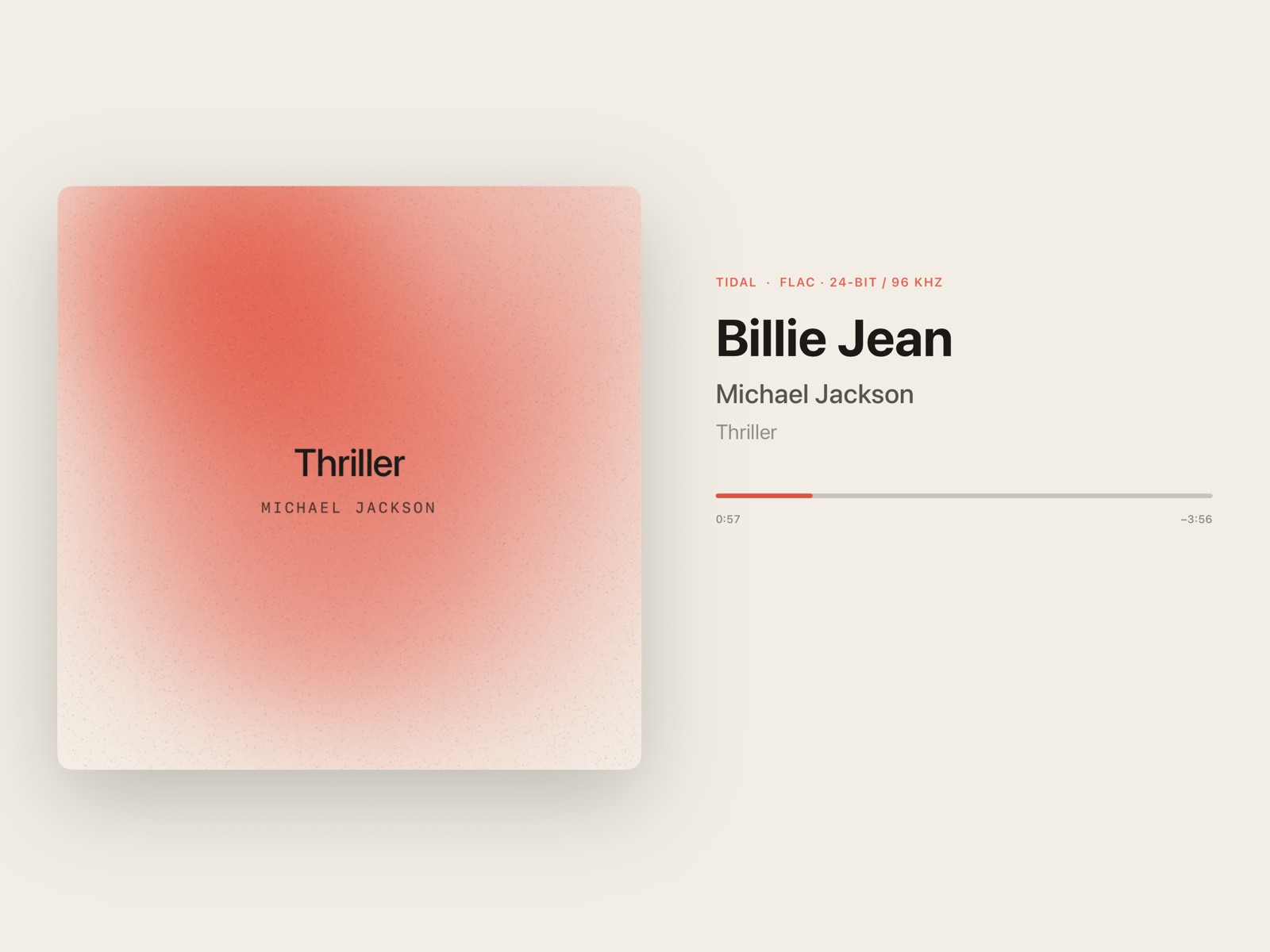
MagicFrame shows what your Cambridge Audio streamer is playing on Apple TV, iPad or iPhone: big album art, title, artist and album, plus the story behind the song. It works with devices that use StreamMagic.
Free to download. Pro is a one-time purchase you can try for 14 days.
What you see and control
The display on the Evo looks good, but from the sofa it's small. On the TV or an iPad next to your hi-fi, you can make out the cover from across the room. MagicFrame shows whatever the streamer reports, from Spotify Connect, TIDAL Connect, AirPlay or internet radio, with format and resolution for hi-res files.
You control playback, next and previous track, volume, sources and presets, and you can put the streamer in standby and wake it up again.

Setting it up
- Set up the streamer with the StreamMagic app, as usual.
- Open MagicFrame on Apple TV, iPad or iPhone on the same network and allow local network access.
- MagicFrame finds the streamer on its own. If it doesn't, enter its IP address in Settings.
Tested with the Evo 150
Other StreamMagic devices, such as the Evo 75, Evo One, CXN100, MXN10 or EXN100, use the same interface and should work the same way. If something doesn't work for you, email me at support@vollweiter-info.de with your model.
Cambridge Audio questions
Do I still need the StreamMagic app?
To set up the streamer, yes. For the display and the everyday buttons, MagicFrame is enough.
Does the sound go through the Apple TV?
No. The music keeps playing through the streamer, and the Apple TV or iPad only shows the picture.
Can I try it without a streamer?
Yes. Demo mode in Settings plays a simulated track with every feature.